
Download iBoysoft Microsoft NTFS – Fast, Secure NTFS Read/Write for macOS
Overview
iBoysoft Microsoft NTFS is a purpose‑built utility that gives macOS users full read/write access to Microsoft‑formatted drives. Designed for macOS Catalina and earlier, the tool removes the long‑standing limitation that Mac computers can only read NTFS partitions. With iBoysoft NTFS, you can edit, copy, move, delete, and rename files on any NTFS external hard drive or USB stick directly from the Finder.
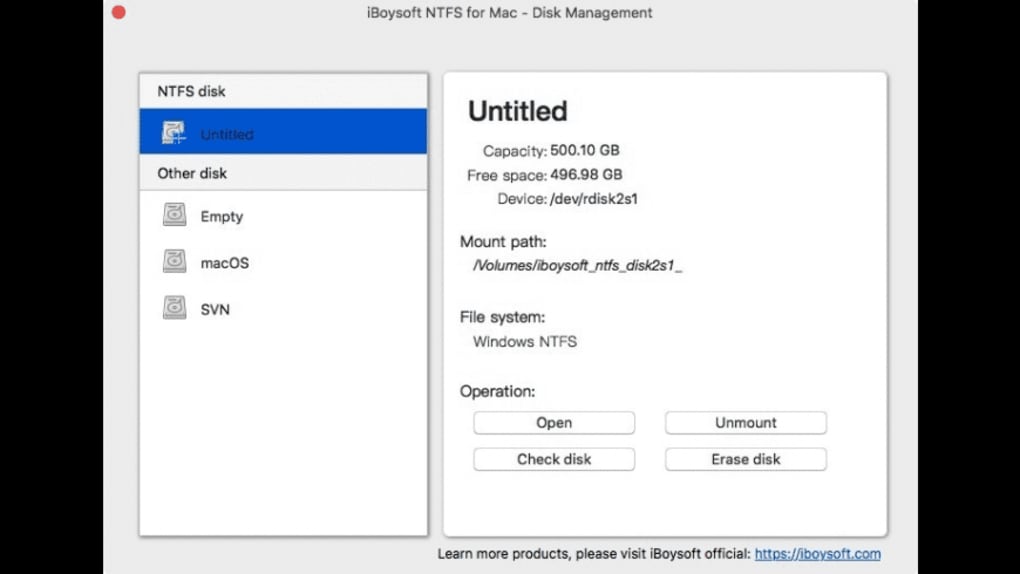
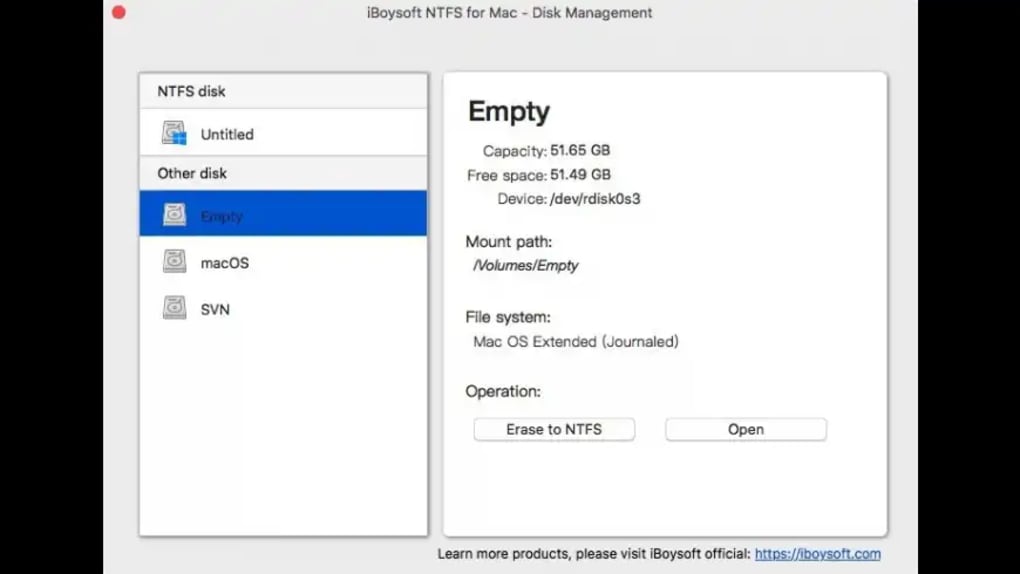
The application runs quietly in the background, automatically mounting newly connected NTFS volumes in read‑write mode. Its engine leverages advanced algorithms to deliver lightning‑fast transfer speeds while maintaining data integrity. Beyond basic file operations, iBoysoft NTFS includes a suite of disk‑management features such as partition information display, secure erase, error checking, and on‑the‑fly formatting to NTFS without a Windows PC.
The user interface is clean and intuitive: after installation, the app sits in the menu bar, ready to manage drives with a single click. Whether you are a photographer moving large RAW files to an external NTFS drive, a developer sharing code across Windows and Mac machines, or a casual user needing to copy movies from a Windows‑only backup, iBoysoft NTFS provides a seamless, secure, and high‑performance bridge between the two ecosystems.
Key Features & Installation Guide
Feature Highlights
- Full read‑write access to NTFS drives on macOS Catalina and earlier.
- Automatic mounting of NTFS volumes at system startup.
- Lightning‑fast file transfer speeds thanks to optimized caching.
- Secure erase and data‑wiping tools for privacy‑focused users.
- Built‑in disk health monitoring, error checking, and repair utilities.
- One‑click NTFS formatting without needing a Windows computer.
- Menu‑bar integration for quick access to drive actions.
- Lightweight footprint – the installer is under 15 MB and installs in seconds.
Step‑by‑Step Installation & First‑Time Use
Installing iBoysoft Microsoft NTFS is straightforward. Download the PKG installer from the official iBoysoft website. Double‑click the file, and macOS will guide you through a standard package installation wizard. The process typically takes less than a minute, even on older hardware. Once installed, the application automatically adds a helper daemon that launches at login, ensuring any NTFS drive you plug in is instantly ready for read/write operations.
To begin using the tool, simply connect an NTFS‑formatted external drive. The iBoysoft icon will appear in the menu bar, and a Finder window will open displaying the drive’s contents. From here you can drag‑and‑drop files, rename folders, or delete items just as you would with native macOS volumes. If you prefer manual control, open the app’s preferences and uncheck “Mount NTFS drives automatically.” This will let you decide which drives to enable read/write mode for, preventing accidental modifications to sensitive data.
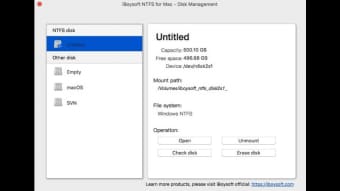
The utility also offers a “Disk Management” panel where you can view detailed information about each partition, run a quick surface scan for bad sectors, or initiate a secure erase. Formatting a drive to NTFS is as simple as selecting the target volume, choosing “Format to NTFS,” and confirming the action. The process completes in a few minutes depending on drive size, eliminating the need for a Windows machine or third‑party drivers.
Compatibility
iBoysoft Microsoft NTFS officially supports macOS Catalina (10.15) and earlier releases, including Mojave, High Sierra, Sierra, and El Capitan. While the developers are working on a version for macOS Big Sur and later, the current build provides a reliable solution for the majority of users still operating on supported legacy systems. The app runs on both Intel‑based Macs and Apple Silicon devices via Rosetta 2 translation, ensuring broad hardware compatibility.
Pros and Cons
Pros
- Blazing‑fast read/write performance that rivals native Windows transfers.
- Automatic mounting saves time and reduces manual steps.
- All‑in‑one disk management tools eliminate the need for separate utilities.
- Lightweight installer and low system resource usage.
- Secure erase and error‑repair features enhance data safety.
- Menu‑bar access provides a clean, unobtrusive user experience.
Cons
- Limited to macOS Catalina and earlier – not yet compatible with Big Sur, Monterey, or Ventura.
- Some advanced features (e.g., scheduled scans) are only available in the paid Pro edition.
- Initial configuration may be confusing for users unfamiliar with disk utilities.
- Runs under Rosetta 2 on Apple Silicon, which can add a slight performance overhead.
- No built‑in cloud integration; users must rely on separate services for remote backup.
Frequently Asked Questions
Is iBoysoft NTFS safe to use on my Mac?
Yes. The application is signed by Apple and follows macOS security guidelines. It writes data using the same low‑level APIs as the native file system, ensuring that file integrity is preserved during transfers.
Can I format a drive to NTFS without a Windows PC?
Absolutely. iBoysoft NTFS includes a one‑click “Format to NTFS” option that reformats any compatible external drive directly from macOS, removing the need for a Windows machine or third‑party drivers.
What happens if I connect an NTFS drive to a Mac without iBoysoft installed?
macOS will mount the drive in read‑only mode, allowing you to view files but not modify, delete, or add new ones. Installing iBoysoft NTFS changes this behavior to full read/write access.
Does the free version have limitations?
The free version provides basic read/write capability and automatic mounting. Advanced disk‑management tools such as secure erase, error repair, and scheduled scans are reserved for the paid Pro edition.
How do I get updates for iBoysoft NTFS?
The application checks for updates automatically at launch and notifies you when a newer version is available. You can also manually download the latest PKG from the iBoysoft website.
Conclusion & Call to Action
iBoysoft Microsoft NTFS fills a critical gap for Mac users who still need to work with Windows‑only storage. Its blend of high‑speed read/write performance, automatic mounting, and built‑in disk utilities makes it one of the most comprehensive NTFS solutions on macOS today. While the current version limits support to Catalina and earlier, the stability and feature set more than compensate for the OS restriction. Whether you are a professional handling large media libraries or a casual user looking to share files across platforms, iBoysoft NTFS provides a secure, reliable, and user‑friendly experience.
Ready to break the NTFS barrier on your Mac? Download iBoysoft Microsoft NTFS now and enjoy fast, secure access to all your NTFS drives. Upgrade to the Pro edition for advanced disk‑management features and keep your data safe while you work across Windows and macOS seamlessly.







